
How to Mix Your Podcast for Better Audio Quality
Get hold of the right tools and techniques to improve the sound of your recording podcasts and other spoken audio – we’ll show you how in this friendly audio production guide.
Get the tools…






Take Your Podcast Audio From Amateur to Professional
Podcast production can be the last thing on your mind, especially if you need to go through the processes of planning, recording and promoting your podcast, making things sound good might be low on your priority list, that is if you know how to do it at all!
In this article, we’ll take you through an essential checklist of good audio ‘hygiene’ when it comes to podcast production. We’ll explain how you can ensure the best quality sound at every stage of production, including what tools you’ll need and how to use them, as well as what your audio should sound like – and sometimes look like – in the process.
When it comes to the dark arts of audio production, it can take a while to understand exactly how spoken voice audio is made to sound better – and what is better to begin with anyway?
1. Improve Your Initial Recording Quality
Of course, if the first link in your chain isn’t up to much, the rest of the process won’t go very well. If you want a good, professional-sounding podcast, the quality of your recording is essential to making it happen. So how can you accomplish this?
Your recording quality is mostly about your microphone. There are many options for external microphones, but you’ll want to spend at least $100 to get a professional sound quality. Options like the Shure SM57 and SM58 provide time-honored sound in a rugged but still budget-friendly format.

One essential thing to note about microphones: professional options connect through XLR connections, not directly through USB. For a ‘proper’ microphone connection like this, you’ll also need to equip yourself with an audio interface. This unit accepts XLR inputs, and this time, it does connect via USB.
Removing Background Noise and Hum After Recording
Even professional recordings can be subject to background noise. This noise comes baked into a recording, and is caused either by too much sound in the room of recording (mechanical noise, traffic noise, etc) or simply by electrical hum and build-up in the recording equipment.
Using a program like Audacity, you can remove background noise using the Effects > Noise Reduction dialog.

2. Read the Meters and Set the Initial Levels
While mixing, and even preferably while recording, you should be looking at the meters in your DAW (digital audio workstation, your recording and/or editing software.) The game here sounds simple: your meters should be moving with the voice signal, and should have enough level, but not so much that they end up turning (or reaching) red.
Too much volume, and the audio signal will distort when exported, as it crosses maximum resolution and gets cut off. Too little volume, and the signal will be weak, less audible, and generally sound less professional. Your job is to push the level higher, but all while staying within acceptable bounds – go high, but don’t cross that line. So how can you do that?
Making a voice sound better is partly a matter of compression (aka dynamic range compression), and EQ to compensate for this. We’ll show you how later on in this article, but if you want to cut your time and effort down considerably, modern technology is on-hand to offer a quicker, more automated solution to making recorded voice sound better…
3. Improve the Voice Sound Quality Quickly
Voice recordings need to have enough dynamic range to sound natural, yet not so much that they’re not loud enough. Their frequency balance should be natural to the original recording, but EQ should counteract any problems with the room of recording, and a de-esser can reduce harshness.
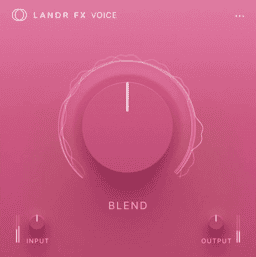
There are two plugins that aim to make short work of enhancing vocals. Soap Voice Cleaner is an all-in-one package for getting cleaner and professional sound voice, with the main goal of improving podcast quality. LANDR FX Voice may be aimed more at sung vocals, but will still work well for spoken audio material.

4. Compress a Voice Recording to Improve Quality
A raw voice recording is usually not going to compete with the finished product: a professionally produced voice recording in a finished podcast. The reason? It’s not loud enough. But that doesn’t mean it’s a case of just turning it up – pushing it too loud would cause the audio peaks to distort.
A compressor is a device that does exactly what you’re looking for. It reduced the dynamic range of an audio signal – in other words, it reduces the peaks – in order to make the signal safer to turn it up after. By reducing the dynamic range, you can increase the loudness and turn it up more before you ‘go into the red’.

To start compressing an audio signal, load a compressor over that audio recording. The way your DAW does this may vary, but usually a drag and drop is enough to instantiate the compressor over an audio track. First, pull down the Threshold control until you see the compressor reacting when the sound is active.
Next, increase the Ratio to about 4:1, and this means the signal will be brought down by that amount whenever the signal goes over your Threshold value. You should hear what seems to be a reduction in overall volume – but more importantly, what you’ve done is reduce the dynamic range. You can now turn up the Makeup Gain control to increase the loudness, but ensure the compressor’s output (and the channel’s fader) do not clip (go into the red).
You can now optionally re-adjust the Threshold to tailor the compression effect. It’s possible to use Attack and Release settings, or to altogether select a compression preset, if your plugin has presets, before you bring the Threshold down to match your specific audio material.
5. EQ the Voice Recording to Improve Quality
An EQ (equalizer) is a device that changes the tonality of your recording by emphasizing or de-emphasizing different frequencies and frequency bands. It’s hard for us to tell you how to EQ a signal, because every signal is different, but we’ll show you how an EQ works, so you can experiment with your own signal and gauge the balance yourself. Alternatively, you can try out a plugin like Soap Voice Cleaner to gauge the balance and set the settings for you.
As seen below, an EQ will show you in its display, the balance of frequencies in your sound, starting with lower, bassier sounds on the left, through to higher pitched sounds and frequencies on the right.

By creating filters within your EQ, you can turn certain frequencies up or down. Below, the EQ has a low-cut filter applied, which removes any energy below a certain point (the bassiest sounds in the signal).

You can also create other bands of boost or cut to alter the sound of the voice channel, and change their shape to refine the result, as shown below.

6. Upgrade your Sound Effects and Music
The final element to improving the sound of a podcast is the quality of the incidental sounds. Depending on the show in question, there may be sound effects, music, either or both.
You can bump your sound effects game to the next level by paying a one-time fee to purchase a creative SFX pack. These packs are usually royalty-free, so once you’ve purchased the pack, you have the right to use the sounds as part of a larger work. You should always check before buying though, just in case.
When it comes to music, you can also buy royalty-free jingles in packs or pay one-time fees for individual files from services around the web.
7. Exporting and Loudness Levels
When you export your podcast, there are some technical standards you should aim to meet.
Unless your podcast uploader requires something specifically different, you should…
- Export as a stereo file (interleaved). Voice signals should be mono (IE, centralized), but music files may end up with more stereo content
- Export as a WAV format file, which is lossless
- Generate a file with a sample rate of 44.1kHz, and a bit depth of 16-bit
Meeting Loudness Targets Before you Export
Before you commit your final file, you should ensure your podcast meets the accepted standard in terms of its audio levels. Your podcast’s overall level should sit at about -16 LUFS, as this is a normal level implemented by Apple, Spotify, Google and other platforms. You’ll also benefit from ensuring your peak level doesn’t go over -1dB ‘True Peak’.
To measure these loudness targets, if your DAW doesn’t have the capability to read them itself, you can try a loudness metering plugin like the free Youlean Loudness Meter. That’s how to read the levels, but how should you change them?
You can fix your True Peak reading to -1dB with the help of your master volume fader. Change it until the reading is correct on your loudness meter. For that -16 LUFS value, though, it’s more complicated.
In short, LUFS is a measurement of the dynamic range of your audio, if you’re far from the -16dB target, you can best change the results by returning to your compressors.
- If your LUFS reading is higher than -16dB (eg, it’s -12dB), then you can reduce the Ratio controls and increase the Thresholds in your compressors slightly, until your reading is more comfortable.
- If your LUFS reading is lower than -16dB (eg, it’s -20dB), reduce your compressors’ Thresholds and increase their Ratio amounts to aim to compensate.
Recommended MuseHub Software and Sounds for Podcasters

An always handy, and free, solution to high-fidelity podcast audio editing
If you’re going to be working regularly with podcast audio, you’re going to need a reliable software to pilot your endeavours. Audacity is a more-than-ample option, coming in at zero cost, with a wide range of tools and applications. There’s a reason it’s been the first stop destination for many audio editors over the years, and if you’re not planning to become a full-time music producer, then Audacity will certainly suffice.

An ultimate vocal-cleaning tool for crisp and clear podcast sound
Soap Voice Cleaner has been a popular choice for many podcast teams due to its easy-to-use interface and undeniable results. It comes stocked with 18 presets, covering a wide range of the most common and popular microphones, and features three simple controls to tune your vocal audio to perfection in no time at all. If you’re working on any kind of spoken-word project, Soap Vocal Cleaner is a top recommendation.
Another favoured option for mixing your vocals to crystal clarity
LANDR FX Voice is a worthwhile mention for musicians and podcast engineers alike. Really, any editing job that works heavily with vocals can reap the benefits of this simplistic plugin. It comes with a whole array of presets to choose from, based on circumstance, and then applies a sophisticated effects chain to your vocal track without you having to consider much else. You simply control the intensity of the effect from a single knob.

Build an appropriate backing track or intro tune for your podcast
You don’t need to be a professional music producer to mix podcast audio to a commercial standard. However, most podcasts can benefit from some musical component in one way or another. With that in mind, this sample pack has set out to provide even those unfamiliar with the intricacies of modern electronic music production a chance at building suitable music for their beloved podcast productions.

A 50-item professional SFX pack for podcasts across the board
Perhaps sound effects aren’t as prominent in the world of podcast production as other audio-editing roles, like cinema and media. Yet, they certainly still have their due place, and you’re likely to run into situations where you need them every once in a while. Or, perhaps you’re building a certain podcast that makes use of SFX regularly. In any case, this Podcast Creator SFX pack has a whopping 50 sound effect files designed specifically with podcasts in mind.

Enjoy royalty-free musical jingles, perfect for giving your podcast that extra touch
Combining predominantly Pop & Hip-Hop, this pack of 70+ loops offers a wide selection of musical jingles you can use in podcast or media productions. Well, you could even sample them and rework them into your own music if you dare. The best part about these musical wonders is that they’re royalty-free. Meaning you never have to worry about breaching anyone’s copyright when using them.