
Take your first steps into mixing music, and learn how to make different channels work together as a full song throughout 12 steps in this beginner’s guide
Get the tools…






How to Mix Music Yourself
There are many stages to music production, each requiring different skills and techniques. Mixing is simply one of them, sitting alongside sound design, arrangement, synthesis and mastering as one of the possible things you’ll do when producing music – although it’s possible opt out of any by collaborating with other people and using their skills.
What is Mixing?
Mixing is all about making the different channels in a song work together. Those channels might be recordings, MIDI instruments or tracks containing samples. The job of a mixing engineer – or anyone who’s mixing a song – is to make each channel clearer, not getting lost or ‘covered up’ by other channels that compete with it. In a way, it’s solving the problem of how to focus on one sound when there are lots of them competing for your attention.
Like any job, mixing is done using tools, and its tools include EQ (equalizers), compressors, reverb processors and others. All mixing tools are available as plugins to be loaded into your DAW, and you’ll find a huge selection of them on MuseHub.

Understanding the Central Problem of Mixing
Let’s say that you’re setting out to mix a song, with all the channels in front of you. Perhaps you find that the snare is lacking in power, and needs to be heard more. There’s one simple solution to this – turn it up.
But then, when turning up your snare, you may find that the piano becomes harder to hear. When you turn up the piano, you lose some clarity on the vocal, so you turn that up, only to find that now you can’t hear the guitar as well. When you turn up the guitar, you realize with horror that you can’t hear the snare: you’re back where you started, only now everything is louder!

So the central problem of mixing becomes more like: How can you make every element of the mix loud enough in its own way so that everything becomes clear and audible in its own right?
With the correct problem now in your mind, let’s discuss how a mixing engineer solves it, and how you can solve it yourself as you set off on your journey in mixing.
How to Mix Music, Step By Step?
Every mix is different, because every song has a different composition, arrangement and balance of sounds. But in mixing, there are certain steps that you’ll see time and time again, which offer a basic guideline for the process.
Now we’ll tell you the different stages of mixing, one by one. These steps may be a good guideline, but this doesn’t mean that later on you won’t benefit from stepping back and repeating a step you’ve already completed.
1. Self Calibration – Refresh Your Ears
Perspective is everything when mixing music, and without calibrating your ears as the first thing on your checklist, you can find yourself going in the wrong direction, making bad choices that end up with an incorrect balance of levels, width, panning, frequency and image.
Most mixing engineers have a few set reference tracks – commercial songs that they know well and have heard a million times – in order to bring their ears back to ‘normal’ and calibrate their hearing system to it before starting work on a new piece of music. This is especially helpful when working in a new studio environment, or simply as a palate cleanser after taking a break.
Referencing – Calibrating Your Ears Throughout Your Work
Having some tracks you know very well can really help refresh your ears, but many mixing engineers and artists will also mix towards a reference – that is, a piece of music that has qualities they would like to match, emulate or ‘hit’ as a target result for the current mix. This kind of referencing should be done often, with the aim of ensuring that the current mix same the same qualities as the target, such as…
- Balance of instrument levels and similar focal points
- Same overall frequency balance
- Similar energy in frequency bands per instrument
- Close in what elements stand out against others
- Panning that gives a similar impression of width
- Matching ‘depth’ amount caused by reverb
- Similar amount of dynamic range, overall and per instrument
2. Ensure Everything’s Working, and Hit Play
So, you’ve got your whole mix in front of you, completely untouched, your setup is ready and working and your ears are primed and calibrated. When you first hit play, assuming your setup is connected properly, it should either be the first time you’re hearing the song, or you should have fresh, calibrated ears and the ability to stay objective to hear it as a new listener would.
When you hit play, listen through to the song in its entirety in its current state, to get an idea of what it sounds like and what any potential issues are. You can note down anything that occurs to you in a notebook or on your computer, but we recommend staying focused on critical listening until the song has finished.

3. Fix any Errors and Use Noise Cancellation
It’s worth playing the song again and soloing individual tracks in order to get a closer listen to them. What you’re listening for here is any big problems. Is one channel full of background noise or amp hum, which has crept in during the recording phase? Low-frequency rumble can be another unwelcome sound that can add issues if not treated at the start. It’s time to get any big errors fixed before you start – or request the original artist to give you something better, if that’s an option.
What Could Be Wrong?
- Low-frequency rumbling has been picked up by the microphone or mic stand
- Background noise on the recording (such as outdoor sound or appliances)
- Humming or buzzing associated with faulty recording equipment or signal
- Dropouts or glitches on recording
- Low-quality sound on recording (EG, it’s been recorded on a phone)
- High or low frequencies are missing entirely
- Compressed audio format used in recording (EG, MP3, OGG, M4A, AAC).
4. Level Balancing
Some people start balancing the levels during their first playthrough. It makes sense, since if an instrument is shrouded or hidden by another, you want to hear everything that’s in the song to make a first impression.
Whenever you start it, the first stage of mixing-proper is usually level balancing. This is the broad adjustment of levels in order to ensure quiet elements can be heard, and loud elements don’t swamp everything.

You’ll be tempted to push and pull the faders to do this, but it’s often advisable to apply gain changes to the source sound at this point – the audio file in the timeline, for example, unless your DAW has a built-in ‘Trim’ control, or if you prefer to use a plugin. This mimics the analog mixing console workflow, letting you make broad gain changes now and leaving the faders for later. Faders come after your chain of insert effects and plugins, while the idea of the ‘trim’ gain control is to apply gain changes beforehand.
Is this Gain Staging?
Gain staging is a process that happens throughout a mix, ensure the levels are always optimal. It’s less of a requirement these days, but still great practice, to gain stage by ensuring your signal always operates at a healthy volume level, to ensure any analog-style processing plugins are having the desired operation and effects.
So yes, getting an initial balance of the levels before adding effects is indeed gain staging – but that continues throughout your entire mix, too.
5. Organise Your Project and your Work
After listening to the song and making some basic volume trim adjustments, it’s not actually time to dive in head first – sorry! For now, the best thing to do is to get organised:
- Consolidate your notes; write down thoughts or issues so you don’t forget them.
- Group similar mix channels (EG drums) and set group output buses and submixes if you wish.
- Make sure every channel is named correctly, which will help you as you move forward
- Hide any channels that aren’t needed from view
- Color different channels or groups of them to help you navigate your project easily
- Save your project and ensure you can back up your work.
6. Adjust Panning and Width
Next, use your mixer’s panning controls to start moving certain elements around the stereo field. Kicks, bass and vocals will usually stay central, but to create the feeling of an immersive virtual sound stage, other elements can be moved left or right – but not too far!

Panning moves elements between left and right in the stereo field. This is very useful for separating sounds and making each one audible. Since panning a sound makes it appear to come from a different place, then it’s a great solution for when two instruments can’t be separated easily using EQ.
Ultimately, we will use EQ to unmask sounds that are covered up by others. But before we start cutting, we can unmask objects by panning so that we use only the EQ that we actually need.
7. EQ and Unmasking
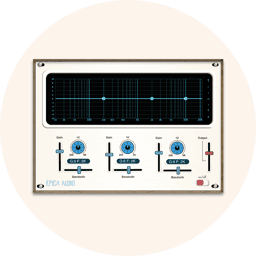
One key solution to making sounds work together is EQ. An EQ (or equalizer) lets us modify different frequencies (high or low sounds) from different instruments. We might use EQ to take out boomy low frequencies, boxy mid frequencies, sheeny high frequencies, or anything in between.
In the image below, we’re removing a specific range of frequencies (pitches, note) from a piano channel, as this exact range is also present in the guitar, making the two instruments clash. When we’re done with EQ, the guitar will be heard above the piano, but we won’t really have lost anything from the piano – we’ll only have lost the energy that was tangled up and clashing in the first place.

For more examples of mixing using EQ, consider kick drums and bass guitars, which often clash; or vocals and synths; and the different parts of a drum kit, which can be hard to separate in order to be made audible over each other.
8. Apply Reverb and Delay for a Sense of Space
Some of the most impressive processors in music production are reverb and delay. What these two time-based processors are really doing is giving a mix a sense of depth and space.
The objective with reverb and delay processors is to add that sense of space without fully drowning the element you’re treating. Once you’ve loaded a reverb plugin and chosen an appropriate sound, a good way to balance its level is to turn it down until it can no longer be heard, and then push it back up again slightly. It’s best to do this within the context of the whole mix (all channels active) rather than to a single, soloed channel.
9. Use Compression to Make Sounds Louder
Instead of volume, there’s a way to make a sound appear louder without necessarily increasing its level (although sometimes increasing its level does come into play a little). This is compression, or ‘dynamic range compression’. As a music producer, you may have heard of this already, but we’ll discuss compression in a mixing context to help you see.
A simple compressor, such as the one available in the MuseFX plugin bundle, takes a signal that goes above a certain level (even if only sometimes), and stops the signal from reaching that level. In fact, by setting a Threshold control, you tell the compressor that signals above that level should be reduced in volume. This leads to a signal that’s less ‘spiky’, as the spikes originally present should all be curtailed.

One idea behind compression is to reduce dynamic range in a signal by reducing the peak levels, and often bringing both peaks and the rest of the audio signal up in volume together. Another reason to compress is to sculpt a sound, altering its tonality slightly. An example of this is in compressing a snare in order to emphasize its peak transient, making it ‘snappier’ or making it ‘crack’ more.
For more advanced uses of compression, there’s Uberloud, the dynamic range compressor that works slightly differently, but achieves similar results. A plugin like the free Puncher 2 Lite includes a transient shaper, which lets you define how loud the transient (spike) and non-transient parts of your signal actually are.
Getting the Right Headroom
Headroom is a measure of the difference between the peak levels of your audio and the loudest possible peak that there is. A mastering engineer will probably request mixed audio be passed along with its peaks no louder than -6dBFS, in order to have more ‘room’ to manoeuvre with processing.
With the correct gain staging, use of compression, and turning down tracks and groups if needed, your headroom should stay acceptable.
10. Add ‘That Special Something’
Finally, just as you may face any given challenge or problem in mixing music, the techniques and tools you have access to can be very creative. Millennium V2 simulates an analog recording console, giving you the processing required to make your channels sound (and react) like they were recorded to tape and run through prized analog equipment. At the other end of the spectrum, Polyspectral MBC is a multiband compressor that can be used to apply ‘surgical’, targeted compression so very specific bands of the frequency spectrum.
11. Check it on More Playback Systems and in Mono
Just because your mix sounds good on your particular setup, doesn’t mean that this will translate to every listener’s setup. One task of the mixing engineer is to ensure that the mix will work both in the studio and out of it, in other environments and on other playback systems.
The classic ‘car test’ is the best example of this: does the mix still sound good in a tiny space where there are many speakers, and sound being bounced and absorbed all over the place? If so, it’s likely that the mix can translate to anything, but more systems to check include…
- Small speakers
- Consumer phone and tablet speakers
- Commercial radios
- Headphones (low and high quality)
- Bluetooth speakers
- In an indoor large playback system (such as a shop)
- A club sound system
Checking a Mix in Mono
Collapsing a mix to mono, IE summing the output to be the same in both speakers, is a crucial test of the integrity of the mix itself. If there are any phase issues, caused by stereo processes or mishaps in recording, these can go unnoticed until the mix appears in mono. The idea is that this doesn’t become exposed for the first time when the music is played in a club or on a fan’s bluetooth speaker. Most DAWs have a setting on the master output to instantly switch to a monophonic monitoring output.
For an experienced mixing engineer, these steps could be repeated multiple times throughout the process, or at crucial points when something is being added or fundamentally changed about a mix.

12. Send it on for Mastering
If mixing is about controlling a song’s channels and ensuring everything is audible and powerful, mastering is about ensuring that the stereo file that the mixing engineer creates is up to commercial standards, well balanced and cohesive as a single file.
Is it Really Ready? Ensuring Your Mixdown is Done
Before you call your export ‘Final’, here’s a checklist to use to ensure there’s no more work to do on your mixing project:
- Is every instrument channel audible?
- Has every channel been checked for rumble and general unwanted noise?
- Is the balance of reverb or delay tasteful throughout?
- Is the dynamic range appropriate to the genre?
- Does the maximum peak level stay below -6dBFS?
- Does each of these things apply throughout the song?
FAQs About Mixing Music
How is mixing different from mastering?
The process of mixing is about making sure individual instruments can be heard over the entire soundscape, and that the music has a sense of depth and space, while mastering involves taking a stereo file and processing it with the ‘final touches’ such as overall dynamic range and overall frequency balance.
What should I do before starting a mix?
Before you start mixing, calibrate your ears with a few well-known reference tracks so you begin with an accurate sense of balance, tone, and space, then play the song from start to finish with fresh ears to get an objective overview and identify any issues, before making changes.
Should I mix in mono?
No, you shouldn’t do your whole mixing task while listening in mono, but you should occasionally check the mix as heard in mono (using your DAW’s controls) to check for any issues that occur on mono playback systems.
How loud should my mix be?
Aim to keep your mix peaks comfortably below clipping, typically around -6 dBFS on the master bus, in order to maintain plenty of headroom; overall loudness isn’t important at this stage, as final level is handled during mastering. Loudness is a factor that varies by genre and format.
How long should it take to mix a song
For a professional mixing engineer, it can take a few hours to complete a single song, on average, but the time required varies depending on the work needed, the recording quality and the number of instruments present. A beginner mixing engineer might shoot for six hours of work on mixing a single song, but spread over two or three sessions. This isn’t a rigid guideline, though!
Recommended MuseHub Plugins for Mixing
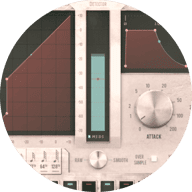
A noise gate covering a wide scope—suitable for all use cases
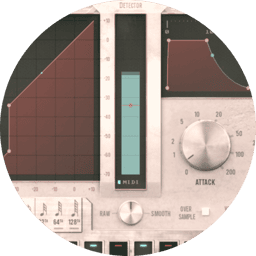
Acquiring a trusted noise gate you can count on is essential if you plan to mix music yourself at home. If you don’t want to break the bank, something like Renegate is an ideal contender to fill those shoes. This noise gate comes with a 16-step sequencer, a Gain Map visual matrix, an Envelope, and a three-mode VCA Gain Reduction engine—all features making it stand out.
Add Renegate to your plugin library now via this link.
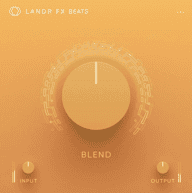
A drum mixer plugin that does all the heavy lifting
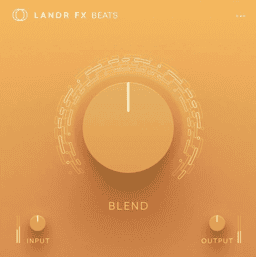
LANDR FX Beats can be a valuable asset to any beginner getting started with mixing their own music at home, offering an abundance of high-quality preset algorithms you can whack on and apply using a single knob. Under the hood, there’s a lot of processing going on to sculpt your drums to a professional state. Yet, all you have to do is simply dial the one knob as desired.
Start making your mixing life easier with LANDR FX Beats by downloading it here.
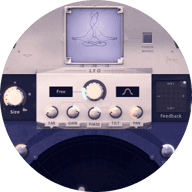
A spatial management plugin, covering stereo widening, reverb and delay
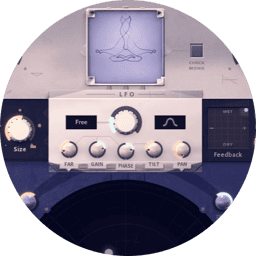
Managing each element of your track in the stereo field, as well as determining its overall spatial position and character, is another unmissable part of mixing. Panagement 2 stands out because it’s all-inclusive, and offers stereo widening, reverb and delay within the same interface. Explore the ways you can change the overall sound with the Panorama View and mysterious PGMT chip embedded into the plugin.
Secure Panagement 2 here and allow it to become your new stereo FX best friend.

A beastly analog tube emulator with additional EQ and dynamics control
When it comes to Millennium V2, you can’t deny its prestige and power. Offering unparalleled warmth and character through its tube saturation, and grouped with a 4-band EQ, plus an Opto compressor, you really get a lot of bang for your buck here. The tube saturation is esteemed through delivering that vintage analog sound. The EQ and compressor are just nice extra features.
Start lathering your mixes with Millennium V2’s luscious saturation by grabbing a copy here.

Give your drums that extra crunch and flare with this signature plugin
Another saturation unit, this time specialising in the drum department. TAPE-MINI brings a ripe punch to any drum track, all delivered through a compact interface with a primary macro knob, a low-pass filter, high-pass filter, mid/side fader, and a mono/stereo switch. Getting your drums to hit hard can be a real challenge, taking up time. TAPE-MINI gives you the result almost instantaneously, from within a single plugin.
Get your drums popping and punching with TAPE-MINI by purchasing it here.